CamelEngine
Made for the Game Engines subject at CITM (Terrassa)
Camel Engine

Camel Engine is a game engine made in C and C++ for learning purposes. This engine is made for Game Engine subject in the 3rd year of Game Design and Development grade of CITM UPC. It has been done in a four month period and tries to be a basic Unity like engine with one high level system.
The high level system we had to implement its an audio engine called Wwise, so in this engine you are able to create audio listeners, audio sources and audio reverb zones to give audio to the games made with it.
Team Members
Pol Camacho

Contributions:
-
First Assignment
- Configuration Window
- Primitives
-
Second Assignment
- Camera
- Culling
- Mouse Picking
- Guizmos
-
Third Assignment
- Audio Source
- Audio Source UI
- Wwise parameters
Alexandru Cercel
Contributions:
-
First Assignment
- UI Editor
- Console
- Hierarchy inspector
- Window About
-
Second Assignment
- Play/Timer
- Reparenting
-
Third Assignment
- Implement Wwise Library
- SpatialAudio
- Debug
Marc Rosell

Contributions:
-
First Assignment
- File System
- Load/Save meshes
-
Second Assignment
- Custome File
-
Third Assignment
- Load/Save events and banks
- Component Listener
- Module Audio
- Play/Pause events
Game Objects Inspector actions
- Transform: Translate, Rotate and Scale the object.
- Mesh: Toggle the view of the vertex and face normals.
- Material:
- Toggle the checkers image.
- Remove the current texture.
Actions in tabs:
- Windows: Enable the engine windows.
- Edit:
- Configuration: Change the engine settings and view graphs about the performance.
-
Game Object: There are six primitives available to be created at any time. These are: Cube, Plane, Cylinder, Sphere, Cone and Pyramid. These are duplicated, the firsts are generated automatically and have no texture coordinates and the ones marked with FBX will be loaded from FBX files and will have texture coordinates.
- About: Get the pages where the project is held in GitHub and get more information about the engine.
Scene Saving
- Scenes can be saved and loaded from the editor main bar. Even though they can be saved anywhere it is recommended to do so in the scenes folder to keep everything organised. Select the desired folder and write the name of the scene with no extension, it will be added automatically. If an existing scene is selected it will be overwritten.
Importing Files
For proper file import it is recommended that the files are already inside the Assets folder before starting the engine. If they are not, files can be dragged and dropped onto the engine in order to be imported. One last way to import files is copying them in the Assets folder and push the Reload button under the Assets hierarchy in the Assets window. Even though fbx files can be imported directly dropping them onto the engine it is recommended that for textures they are first copied in a folder inside assets and then dragged onto the engine to acces the importing options.
Importing Options
There are plenty of importing options specially for textures. When the file is dropped onto the engine an importing window will pop up to select the desired options. The only model format supported is fbx so if a warning or error message is displayed saying that a file from a different format can’t be imported, this is the reason.
Camera Culling
- The camera in the center of the screen is the main camera. Move it to see how camera culling is applied to objects. In the menu bar editor camera culling can be applied to see all objects in scene.
Things to take into account
- At the end of the inspector window there is a ab called Resources. In this tab it is shown all the resources which are currently loaded into memory. If numbers seem to not match for textures take into account that assets window icon textures and preview textures are included in the list.
First Assignment
- The engine settings are loaded directly from a JSON file named config and located in GenesisEngine/Assets/Config. this settings include the modules values and which windows are opened on start.
- When and FBX is loaded the hierarchy of the objects is mantained and the name of the objects in the FBX will be assigned to the new Game Object.
- Objects can be deleted selecting them and pressing SUPR.
Second Assignment
- Scenes can be saved with custom name and overwritten by just clicking on them.
- Textures can be previewed in the assets window.
- Interactive path in assets window which lets the user move easilly bacwards in the file or folder path.
- Meshes can be selected individually from inside a model pushing the arrow next to the file in the assets window.
- Inside the configuration window there is an option under the resources tab which lets you delete all meta files and library files at shutdown so projects can be cleaned before releases or sending to mates.
Third Assignment
- Included Wwise SDK and libraries into our engine
Audio Sub-System
Audio sub-system uses Wwise to read and use the audio banks.
Audio Listener
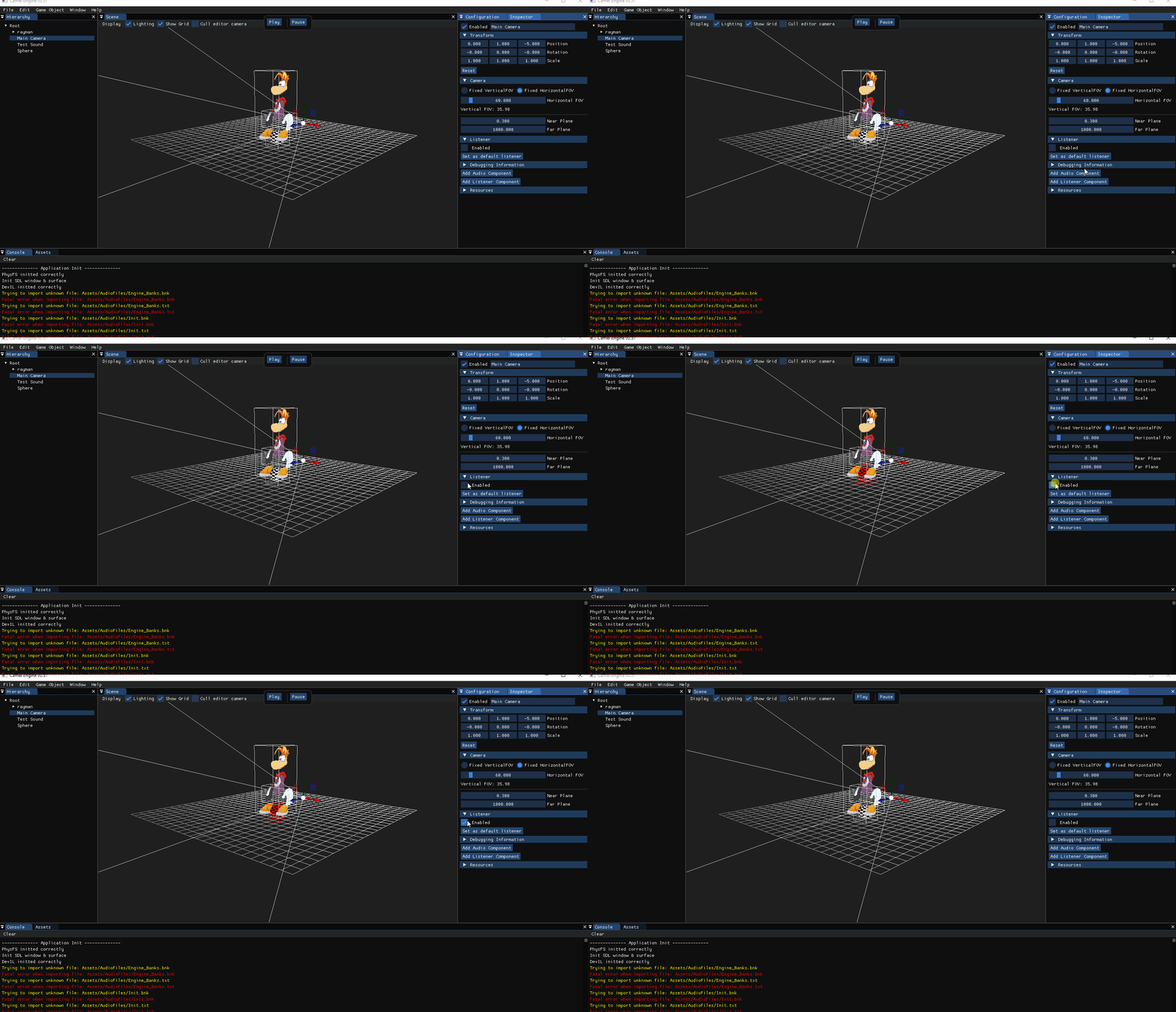
- Audio Listener component to mark from whatever GameObject we want to listen our sounds in our case we have the main camera as our main listener.
Audio Source
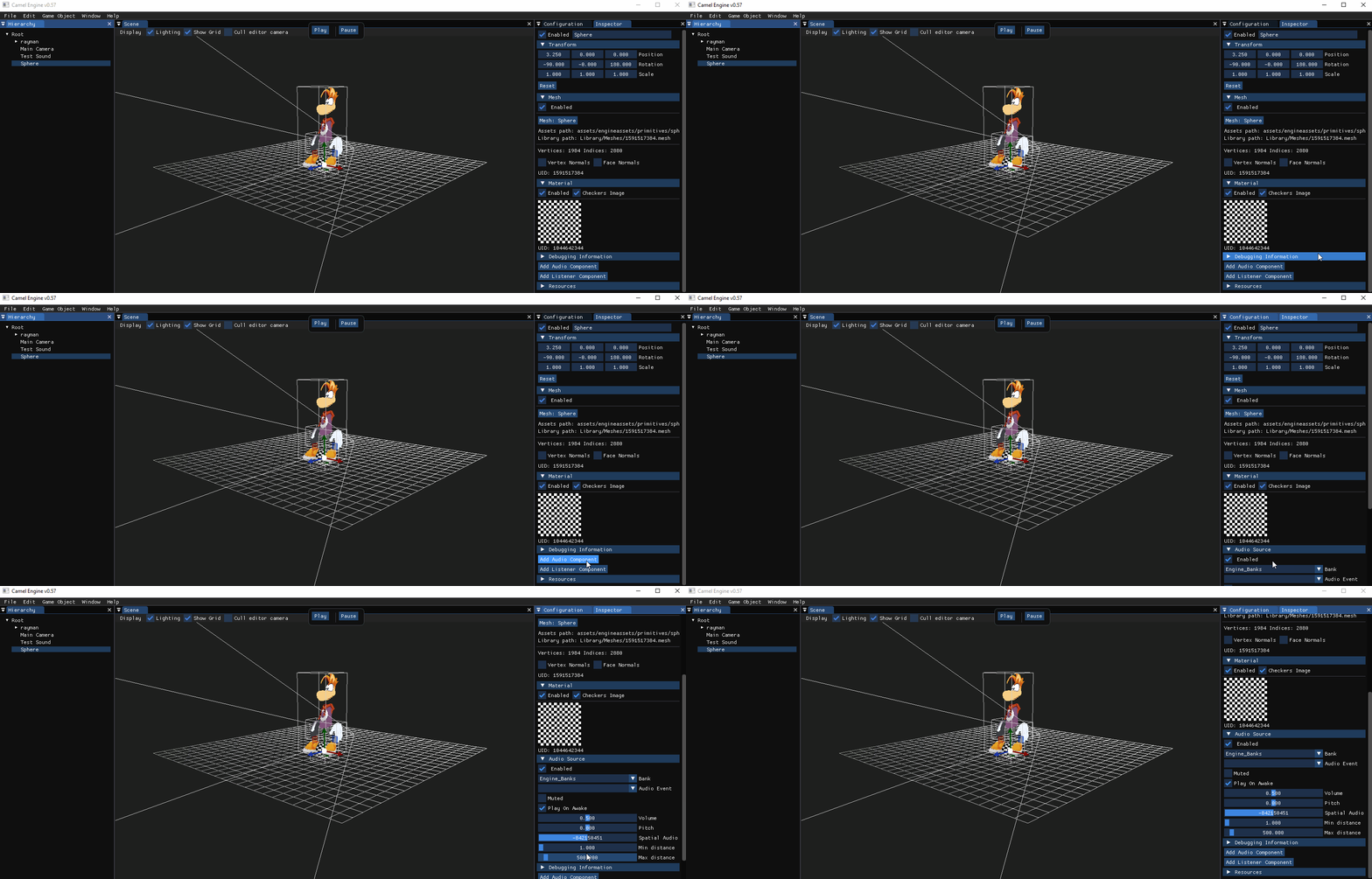
- With this component we can add it to a object to mark it as a Audio Emitter and it will reproduce audios if we add a AudioSource to it.
Audio Clip
-
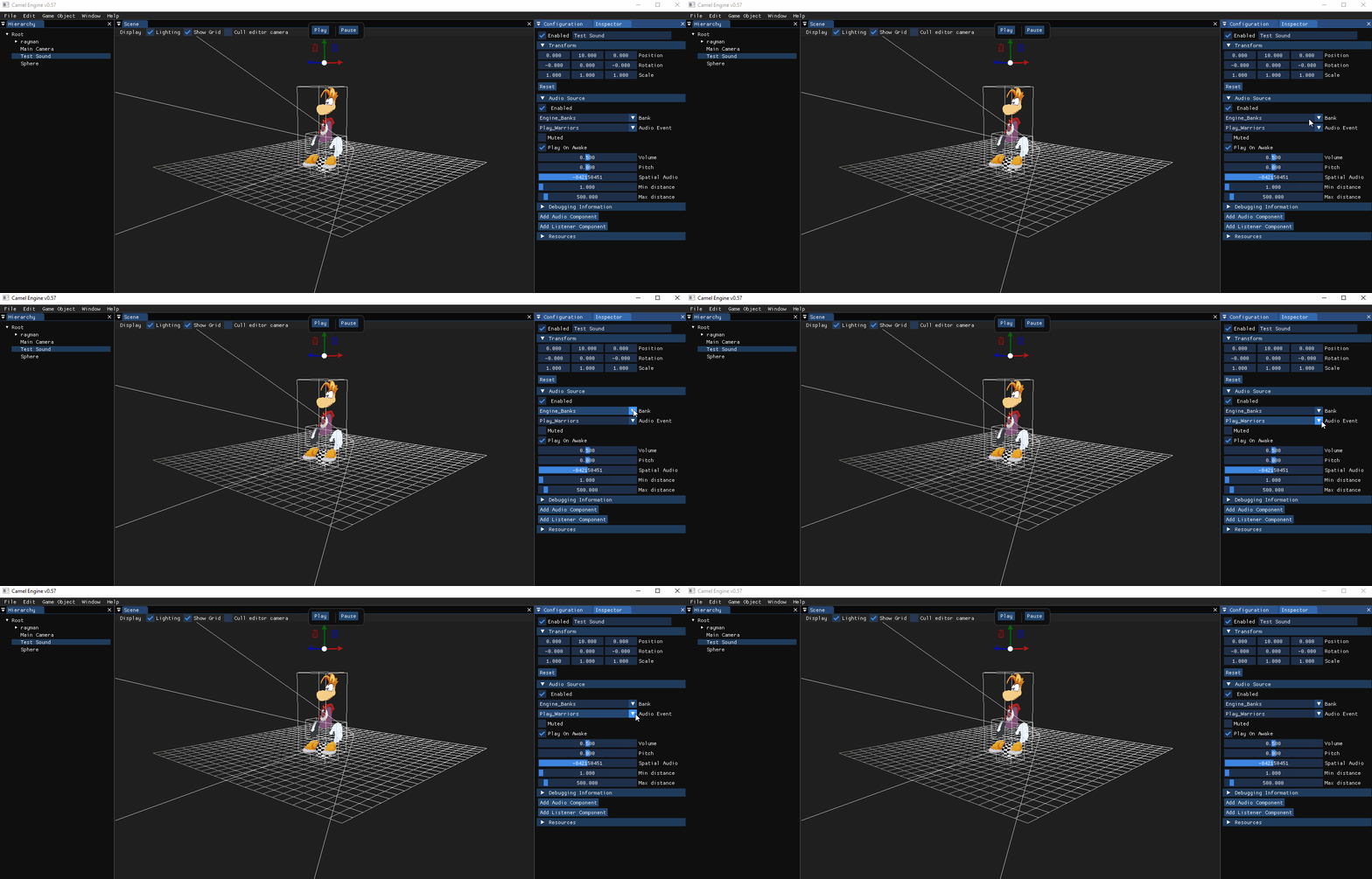
In case the clip has 2 audios attached to it you can add events to it. In the inspector you can choose what bank you can use and what event you want to use in the respective gameObject, the events makes a call to the respective audio and it saves on the object that the event is called
- Enable/Disable option for the source and listener wich cannot play a track if its disabled.
Time to Swap
- With this function we can crossfade audios and swap them with a smooth transition.
Play Stop
- It allows you to play and stop the clip so you have a preview of how it will sound when you enter to the game-mode.
Mute
- It let’s you mute the clip.
PlayOnAwake
- It has the option to set the audio as PlayOnAwake, so it starts reproducing at the moment you enter to the game_mode.
Volume
- It lets you select the volume that the clip will have when it’s reproduced.
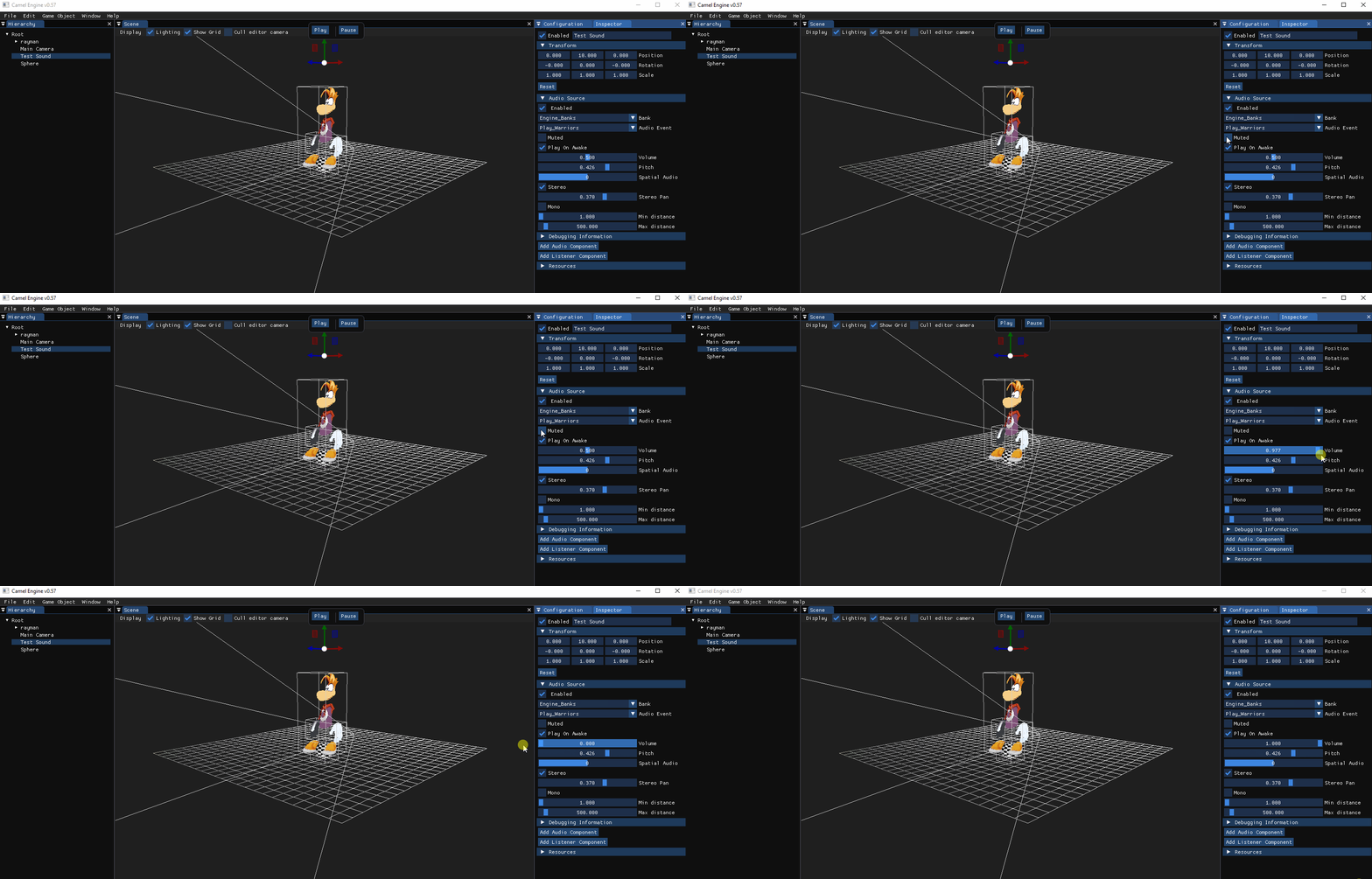
Pitch
- Depending on the slider value the sound will reproduce with more deep tones or higher tones.

IsSpatial
- SpatialAudio option has 2 values(0 and 1) and if we choose 1 the spatial option is enabled and we can hear the sound depending where the default listener is.
- (Still developing) We can choose the minimal distance and the max distance of where we can hear the audio in the 3D spatial mode
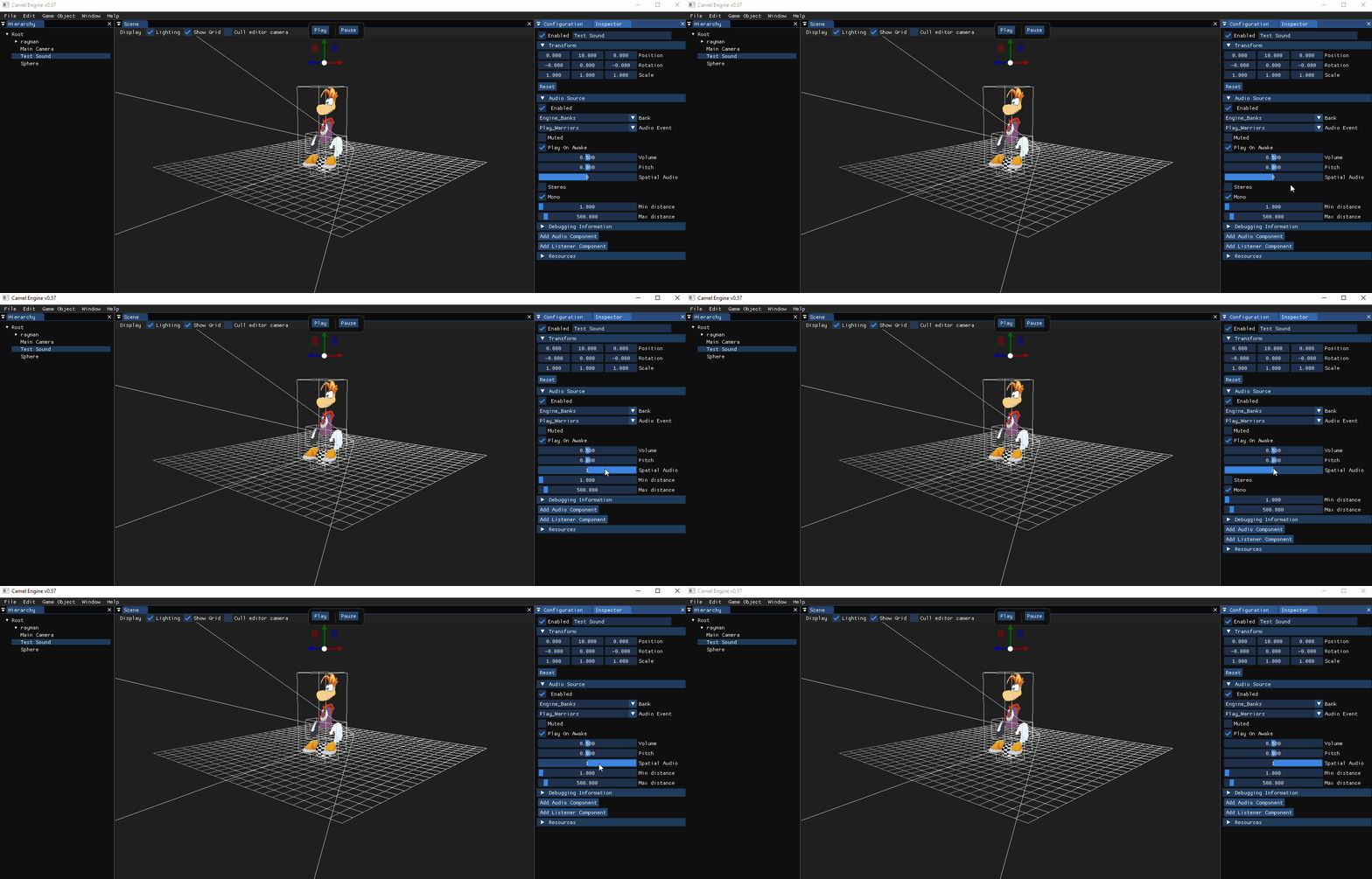
- (Still developing) We can choose the minimal distance and the max distance of where we can hear the audio in the 3D spatial mode
- If we choose to be 2d we can use stereo option, if we enable it, we can edit the pan of the left and right speakers as we want. We can also mute.
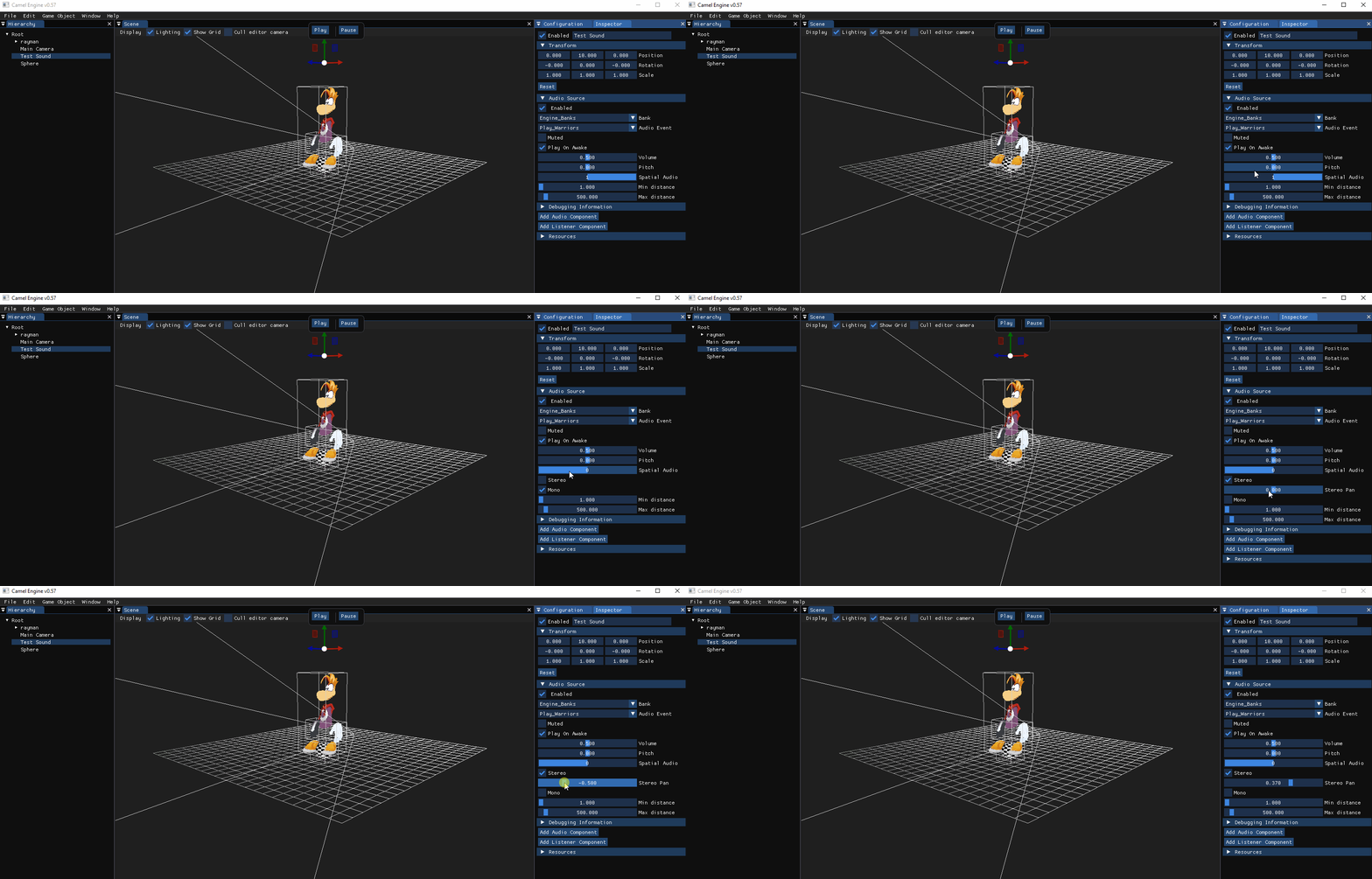
Controls:
To freely move the camera in the scene, the scene window must be selected or focused.
Camera Controls:
- W / Up Arrow: Move Forward
- A / Left Arrow: Move Left
- S / Down Arrow: Move Backwards
-
D / Right Arrow: Move Right
- Mouse Wheel: Zoom In/Out
- Middle Mouse: Drag to move horizontally and vertically.
- Right Click: Orbit around the selected object. (If an object is not selected it will orbit around the center of the scene).
- F: Focus the camera around the selected object.(If an object is not selected it will focus around the center of the scene).
- O: Move Up.
- L: Move Down.
- Hold Shift: Duplicate movement speed.
Video
Licenses
Copyright (c) 2020 Pol Camacho, Alexandru Cercel, Marc Rosell, Marc Pages Francesch
Permission is hereby granted, free of charge, to any person obtaining a copy of this software and associated documentation files Genesis Engine, to deal in the Software without restriction, including without limitation the rights to use, copy, modify, merge, publish, distribute, sublicense, and /or sell copies of the Software, and to permit persons to whom the Software is furnished to do so, subject to the following conditions :
The above copyright notice and this permission notice shall be included in all copies or substantial portions of the Software.
THE SOFTWARE IS PROVIDED ‘AS I’, WITHOUT WARRANTY OF ANY KIND, EXPRESS OR IMPLIED, INCLUDING BUT NOT LIMITED TO THE WARRANTIES OF MERCHANTABILITY, FITNESS FOR A PARTICULAR PURPOSE AND NONINFRINGEMENT.IN NO EVENT SHALL THE AUTHORS OR COPYRIGHT HOLDERS BE LIABLE FOR ANY CLAIM, DAMAGES OR OTHER LIABILITY, WHETHER IN AN ACTION OF CONTRACT, TORT OR OTHERWISE, ARISING FROM, OUT OF OR IN CONNECTION WITH THE SOFTWARE OR THE USE OR OTHER DEALINGS IN THE SOFTWARE.